|
Loading
It's all about the thinking process and a fantastic way of visualising it with Mind Maps. You will find here many resources that I'm collecting with my new passion. Whether it's rules, techniques, tutorials, tips, templates, stories, ... it may help you with mind mapping. I'm a ThinkBuzan Licensed Instructor and everything I will share with you here will remain connected somehow to Tony Buzan's world. Enjoy!
Showing posts with label Business. Show all posts
Tuesday, October 1, 2013
5 Reasons to join Biggerplate Unplugged - Utrecht (NL)
Labels:
Biggerplate,
Business,
Communication,
Encounters,
Event,
Meeting,
Mind map,
Mind Mapping,
Software,
ThingLink
Monday, May 7, 2012
Interactive mind map with ThingLink
Think outside the box
People are often asking me how many different tools I’m using to draw my creative mind maps and how much difficult it is. I might surprise you with my answer but actually I’m using only a few and it is easier than it seems. Indeed, innovation can be as simple as considering two tools such as iMindMap and ThingLink which were not initially designed to work together but once combined, offer you a new dimension to explore and create. I have already addressed this subject in my previous posts
Beyond limits of software and Creative mind maps are also possible with computers. Most of the time the solution is not in one application. We are living in an open world. Open your mind, be curious and go outside the box which is imposed by your software. (R-)Evolution is somewhere there.
About the tagging tool
ThingLink is a Finnish-American provider of in-image interaction tools. It’s a tool that makes it easy to add clickable tags to any image on the web and share them on social networks. When linked with a URL to one of the rich media enabled sites, a tag (bubble) is created for the related content. These tags will then be revealed every time a viewer scrolls their mouse over the uploaded image.
ThingLink technology changes how people engage with photos by transforming them from a static image, into a navigational surface for exploring rich, relevant content that enhances the viewer’s knowledge and experience. It's free for the first 50 images you tag.
ThingLink’s exclusive Rich Media Tags feature popular media players, apps and websites -- from YouTube, Vimeo, TED, SoundCloud, Google Maps, Spotify, FlickR, Instagram, TwitPic, Imgur, Wikipedia, Facebook, Twitter, LinkedIn, Amazon, eBay, BestBuy, iTunes, Etsy, Mailchimp, ThrillCall, Eventbrite and FanBridge (visit ThingLink blog for most recent information and updates). Marketers can also create links inside images to anywhere on the Internet and build custom, branded tags using ThingLink’s smart app developer tools. ThingLink tag supports the Open Graph API, enabling publishers of newspapers, magazines and blogs to feature content as rich media tags on interactive images. For web sites using Open Graph, ThingLink Smart Tags automatically convey a story post with a post title, image and source.
Interact with the mind map
Mouse over the picture here below and discover an interesting way of interacting with a mind map. You will find various pieces of content I selected from my personal library and from some of my peers. Who knows? You might have been tagged! Check it and share it.
![]() |
| Interactive mind map with ThingLink |
Add tags in a few clicks
Here are very simple steps you can use to turn your mind map into an interactive one:
- Create an image file of your mind map;
- Identify and collect the URLs of the different rich media enabled sites you want to embed (all URLs are supported but not all will reveal a rich media tag);
- Sign up for ThingLink. It's free!
- Upload your mind map image (from your drive, Facebook, FlickR or from a URL on the web);
- Edit your tags. It is as simple as clicking the image at the exact place where you want the tag to appear and paste the associated URL. You can also add a description that will appear inside the bubble;
- Save your tagged image on your dashboard;
- Share your image with your network. You can also track the traffic it generates;
If you need more information about the type of tags that are supported, there is a presentation about Rich Media Tags on SlideShare or this video on Youtube. The support section on ThingLink website is also providing very good information and explanations.
I hope I could unlock some creativity blockers you might face. I'm sure you are now ready to achieve new things with your mind maps and bring them to a different level. Would you have examples you want to share, do not hesitate to post here below. Your feedback is appreciated. It's a very important support for going further and give you more articles like this one.
Labels:
Business,
Communication,
Creativity,
Examples,
iMindmap 5,
Interactivity,
Marketing,
Software,
Tagging,
ThingLink,
Tutorial
Thursday, February 23, 2012
Map your organisation with a chart in iMindMap
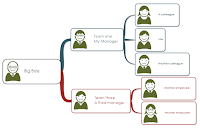
I must admit that conventionally we use poor organisational chart diagram in order to present the composition of a team, a department or even a company. On the market, you will easily find software’s that support this type of diagram. If you plan to use iMindMap or if you are already using it, this application can support the diagram as well. The easiest approach is to build the diagram from left to right instead of bottom to top. Indeed, from a mind map perspective, it’s easier to connect texts at the right (or left) of the central idea. Let me explain you how to exploit one by one some of the key features of the application (you can find here a full list of iMindMap features and details).
Box Branches and “Speed Mind Map”
In a standard organisation chart, elements are usually represented by boxes. In order to create your mind map with such boxes, you can use box branch. This branch type has also the advantage of supporting multi-lines. If you need to type both the team name and its leader for instance, it’s possible by adjusting the box width accordingly. You can also force the return line feed with <CTRL> + <ENTER> inside the box.
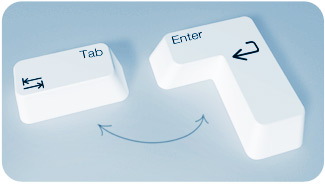
Because the layout is secondary at this stage, you should focus first on the content. Your central idea represents the top of the organisation you are drawing. With the “speed mind map” mode, you will create your chart in just a few seconds. By exclusively using the keyboard, enter the hierarchy of people. If you want to create a child box branch, hold the <SHIFT> key and press the <TAB> one. If you want to create another branch at the same level (when entering team members for instance), hold the <SHIFT> key and press the <ENTER> one as many times as needed.
SmartLayout and Clean Up
In order to get your mind map quickly and automatically re-arranged, you can use the Clean up feature. It’s in the Format->Layout menu. The software will use the SmartLayout settings and will apply it to all your branches, delivering a clear and well formatted diagram.
Control Points, Branch Pins and Expand/Collapse
If you don’t like the branches radiating around the central idea, I propose that you use the first control point of each main branch and drag it outside the box at mid-height. You will flatten the first level of branches and the diagram will look more like an organisation chart.
You will also notice the +/- icon on your branches. It allows you to expand and collapse the underlying level of branches. This can be very useful especially when you have modeled a big department with many teams and members. You can hide the Expand&Collapse icon (and several others) with the View->Show & Hide menu.
Styles
Using the Design menu, you will benefit from additional functionalities that will enhance the look and feel of your chart. You can use predefined layout but this can damage the layout you have already put in place. Instead you can adapt several dimensions using the top right menu. Indeed, you can change the Font option (e.g. Calm), the Colours scheme (e.g. Decorous) and the Graphics style (e.g. Fun, which will increase the width of your branch and drop a shadow). If you want, you can also create and save your own options in each of the category.
Sketch
Now that your chart is finished, why not adding some pictures to it. The box branch supports an embedded sketch. I recommend that you prepare member's photos outside iMindMap, using another editor. Once your photos are ready, ideally with a consistent shape and format, you can simply paste them on the different boxes. You can also edit the central idea picture in case you need to add photo there as well. To do so, you will select the central idea and use the Insert->Sketch menu.
![]() |
| Organisation chart with iMindMap |
Why not using the limitless workspace within iMindMap to manage several departments and teams simultaneously and still maintain the clarity and ‘whole picture’ effect. Your maps can be as elaborate and as large as you decide because you can create as many central ideas on your canvas as you wish.
Relationships can also come in very handy when you’re working with MultiMaps, acting as an anchor between connected maps. You can document your organisation with high level views and more detailed ones, using relationships for navigating among the different levels or divisions of your company.
Presentation view
ThinkBuzan Cloud (Beta)
Organisation charts are typical assets that evolve in time. Ideally, it should be stored and accessed centrally. You can simply save your diagrams in the secure ThinkBuzan Cloud and you will be able to access them from iMindMap desktop or iMindMap Online on any other computer. Once safely tucked in the ThinkBuzan Cloud your maps will be automatically synced whenever you work on them.
As you can see, iMindMap proposes many features for designing and maintaining professional diagrams. A mind map is not an organisation chart but reversely, you can draw such a diagram with a mind map tool. Let me know if you tried yourself. Share your experiences and comments with me and others here on the blog.
Labels:
Business,
iMindmap 5,
Tutorial
Wednesday, July 6, 2011
Five Wives and One Husband in colour
I dedicate this post to Chris Griffiths, CEO of ThinkBuzan, the organisation behind Mind Mapping. Chris is near to publishing a new book – GRASP The solution. In his book, he will teach you techniques to generate ideas beyond conventional patterns and he will show you how to develop your powers as a creative thinker. What I will give to you this time is perfectly aligned with the book and will bring you one step further to mastering computer based mind maps.
The way you define your challenge or problem will influence your chances of finding the keys to success or solutions. I remember what happened during the last team building event we did at work a couple of weeks ago. The facilitator had hardly started to explain what the challenge was, nearly everybody had already started to discuss, prepare and even implement a solution. A lot of important information was missed, nobody took the time to look around whether the context could help, and nobody could remember how much time we had to finish it. During the exercise, nobody looked at the clock or questioned some of the initial statements. It ended in a chaotic situation until we decided to (re-)analyse the problem properly and apply a strategy somehow.
Some exploration is needed in order to better understand the context, identify a couple of alternatives and think about the solution(s). Instead of using plain text, we can use divergent or radiant thinking empowered by mind maps. This improves the overall comprehension of the problem and ensure we keep the focus on the primary goal. It’s by far the best way to generate more and new ideas.
One very useful method for breaking down your problem in a way that maximises your understanding and your chances of finding a solution is called the Five W’s and One H. It consists in mapping out the problem using What? Why? Where? Who? When? and How? pattern. The technique is straight forward and with a mind map, you can easily start your exploration process by setting your challenge or problem as the central idea. Then, each of the main branches will address one of the questions.
| Five Ws and One H mind map creative template - Black |
You can find a lot of books or websites dealing with the subject as well as some templates for supporting the exercises, including mind maps. However, I insist again on the fact that we cannot just do the work using the same look and feel again and again. Creativity is waiting there to unlock the doors of formalised and standardised outputs. I consider the Five W’s and One H template very easy to implement but I wanted it to go beyond the usual layout and usage. Therefore, I have designed a much more engaging template for you. It is a first example of how a well known practice, used by thousands of people in the world can reach another level of creative thinking, fully supported by the iMindMap software.
By applying different layouts, colours, backgrounds, fonts that match or customize the subject analysed, my goal is to assist and inspire you and make it possible for you:
- Enjoy the process (both creating and reviewing);
- Generate more and new ideas;
- Create a unique reference that can be distinguished from other similar initiatives (from you or others);
- Amaze and engage your audience when presenting.
Let your imagination guide you to different outputs according to your objectives. iMindMap supports background colours and floating images, why not use them. As an example, here are a couple of other mind maps derived from the initial one.
| Five Ws and One H mind map creative template - Eco |
More practically, if you want to proceed further with the template here is some complementary information which may guide you when filling-in the map.
For consequent problems:
WHAT? Investigate the circumstances of the problem. What are the facts, without assumptions, causing it. Gather a maximum of information and details from the environment (people, systems, ...).
WHY? Look for the conditions or the events that are causing the problem. Without judging or denying, list elements that if eliminated might prevent the problem from occuring.
WHO? Identify the person or people who can help to solve the problem and can be involved in the solution (consultant, expert, family, colleague, ...).
WHEN? Define strictly your deadline and the time frame for the rest of the problem assessment and solution implementation.
WHERE? Determine the best place or environment in which you will work things out or implement the solution. Where would this ideal location be?
HOW? Describe how the problem influence people and activities in terms of tasks, departments, resources, tools, ...
For significant challenges or objectives:
WHAT? Explain what you are trying to achieve. Give the details about your objective, what you want to happen and where you want to get to.
WHY? Give details about the reasons why it is important for you to achieve this goal. By exploring this dimension, you will have a better outlook of what you are aiming, which is important when you will have to take decisions.
WHO? Find a way to become immersed personally in the problem in order to see it from a more concrete perspective. Identify people who may assist before you start to implement the solution.
WHEN? Define when you need to have the goal achieved. Make a plan with intermediary objectives.
WHERE? Describe the location where most of your activities will take place. Find out specifics about the position you will adopt to maximise your chances of success.
HOW? Depict how the challenge impact people and activities, in terms of tasks, resources, products, tools, ...
For those who are interested by the iMindMap file, it is uploaded on the Biggerplate platform and accessible on http://www.biggerplate.com/mindmaps/RHRWydzh/philippe-packu-five-wives-and-one-husband-template-3
Labels:
Business,
Communication,
Creativity,
Emotion,
iMindmap 5,
Marketing,
Problem solving,
Template,
Tutorial
Subscribe to:
Posts (Atom)